
Configure Your Brokerage
This guide shows you how to set up your brokerage configuration in the admin dashboard.
Access Brokerage Settings
Section titled “Access Brokerage Settings”From the Admin Dashboard, navigate to Brokerages and select your brokerage to edit.
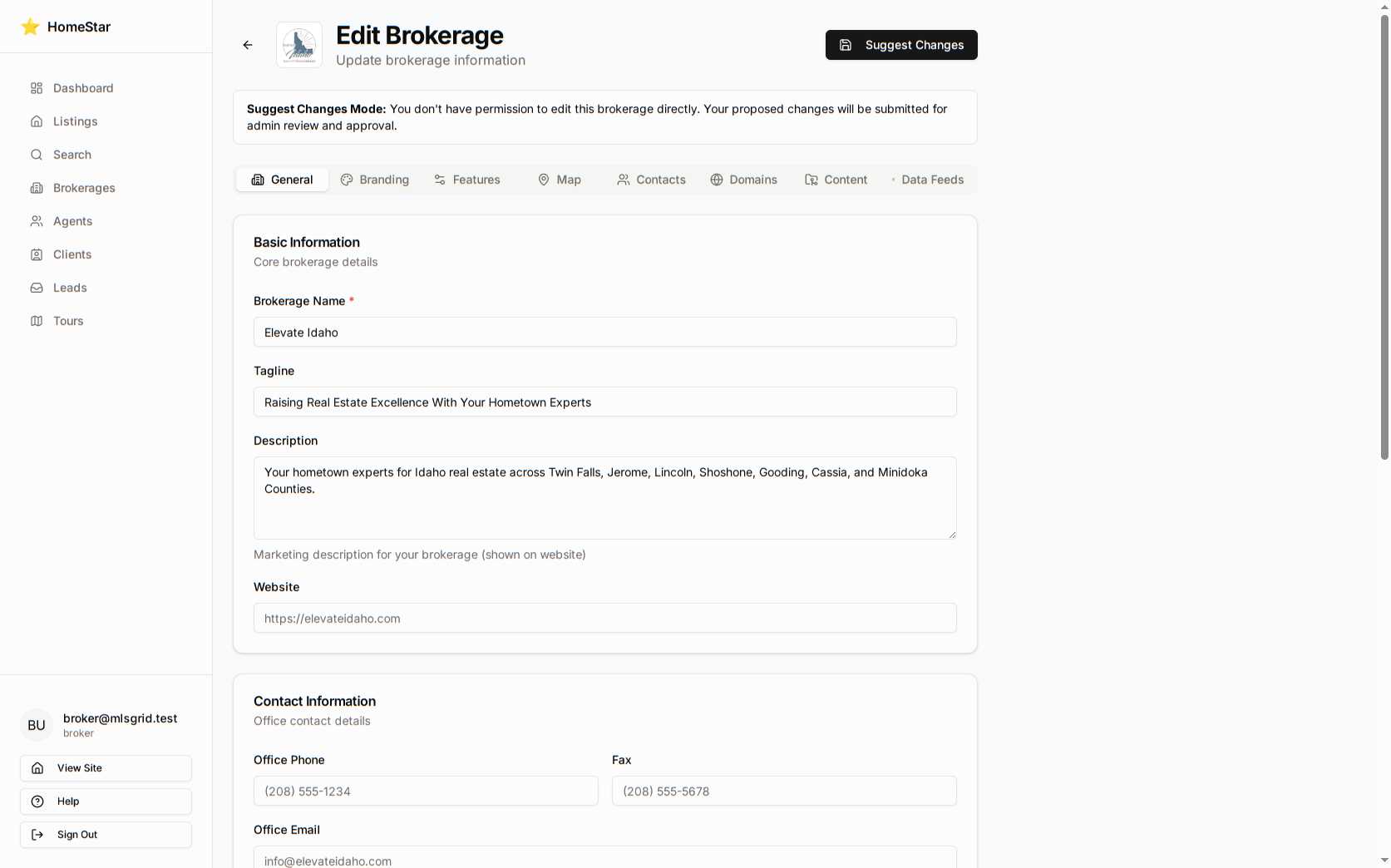
Setup Basic Information
Section titled “Setup Basic Information”-
Go to the General tab
-
Fill in your brokerage details:
- Brokerage name (required)
- Tagline for marketing
- Full description
- External website URL
-
Add licensing information:
- License type (e.g., DRE)
- License number
-
Enter your office address (used for local SEO and website display)
-
Click Save
Configure Branding
Section titled “Configure Branding”-
Navigate to the Branding tab
-
Upload your logo:
- Use wide format (2:1 ratio recommended)
- Minimum size: 600x300px
- Formats: PNG, JPG, or SVG
-
Set your primary brand color using the color picker
-
Add social media URLs for platforms you use
-
Customize the hero section:
- Write your headline
- Add a subtitle
- Enter search examples (one per line)
-
Configure navigation menus:
- Add/edit header menu items
- Configure footer links
- Drag items to reorder
- Toggle visibility as needed
-
Click Save
Connect a Domain
Section titled “Connect a Domain”-
Go to the Domains tab
-
Click Add Domain
-
Enter your domain name (e.g.,
yourbrokerage.com) -
Configure DNS at your domain registrar:
- Add a CNAME record
- Point to:
idx.l.supported.systems
-
Wait for DNS propagation (can take up to 48 hours)
-
Click Verify to confirm setup
-
Optionally, click Set Primary to make this the canonical domain
Connect MLS Data Feed
Section titled “Connect MLS Data Feed”-
Navigate to the Data Feeds tab
-
Click Add Feed
-
Choose your feed type:
- MLSGrid (recommended for most brokerages)
- RESO Web API (direct MLS connection)
- RETS (legacy systems only)
-
Enter the required credentials:
For MLSGrid:
- Access Token (from MLSGrid)
- Originating System Name (e.g.,
imls,sdar)
For RESO Web API:
- Web API URL
- Server Token
- Dataset ID (usually
MLS)
For RETS:
- RETS Login URL
- Username and Password
-
Click Test to verify the connection
-
If successful, enable the feed and click Save
Configure Lead Routing
Section titled “Configure Lead Routing”-
Go to the Features tab
-
Scroll to the Lead Routing section
-
Select your routing mode:
- Primary Agent Only — All leads to one designated agent
- Round Robin — Distribute evenly among eligible agents
- Weighted — Assign based on performance/seniority
-
Configure routing options:
- Enable Pre-Filter to use semantic matching before routing
- Set Fallback behavior when no agent matches
-
Click Save
Set Service Area Boundaries
Section titled “Set Service Area Boundaries”-
Navigate to the Map tab
-
Drag the logo marker to set your default map center
-
Drag the orange corner circles to define your service area boundaries
-
Choose between Street or Satellite base map
-
The panel shows your current settings:
- Center point coordinates
- Default zoom level
- Service area bounds (North, South, East, West)
-
Click Save
Enable Website Features
Section titled “Enable Website Features”-
Go to the Features tab
-
Toggle features on/off based on what you want to offer:
- Semantic Search
- Map Search
- Favorites
- Contact Form
- Virtual Tours
- Mortgage Calculator
-
Set specializations if applicable:
- VA Loans
- Military Specialist
-
Click Save
Add Broker Contacts
Section titled “Add Broker Contacts”-
Navigate to the Contacts tab
-
Click Add Contact
-
Fill in contact information:
- Name
- Email (required)
- Phone number
- License type and number
- Upload profile photo
-
Check Primary if this is your main contact (unsets any existing primary)
-
Click Save
Verify Your Configuration
Section titled “Verify Your Configuration”After setting up all sections:
- Click Save in the top-right corner
- Wait for the confirmation message
- Visit your website to verify changes appear correctly
- Test lead forms and search functionality
- Check that MLS data is syncing properly
Changes take effect immediately on your website once saved.